
Notetaking is integral to any cyber security professional’s workday. It allows you to capture your thoughts, document tasks that need to be done, and create a knowledge base that you can reference.
Because our job can become very technical, you may feel overloaded with the number of things you must remember:
- Remember to complete this task.
- Remember this esoteric command to enumerate a Windows machine.
- Remember to perform this process when investigating malicious activity.
- And so on…
The list of things you need to remember is endless!
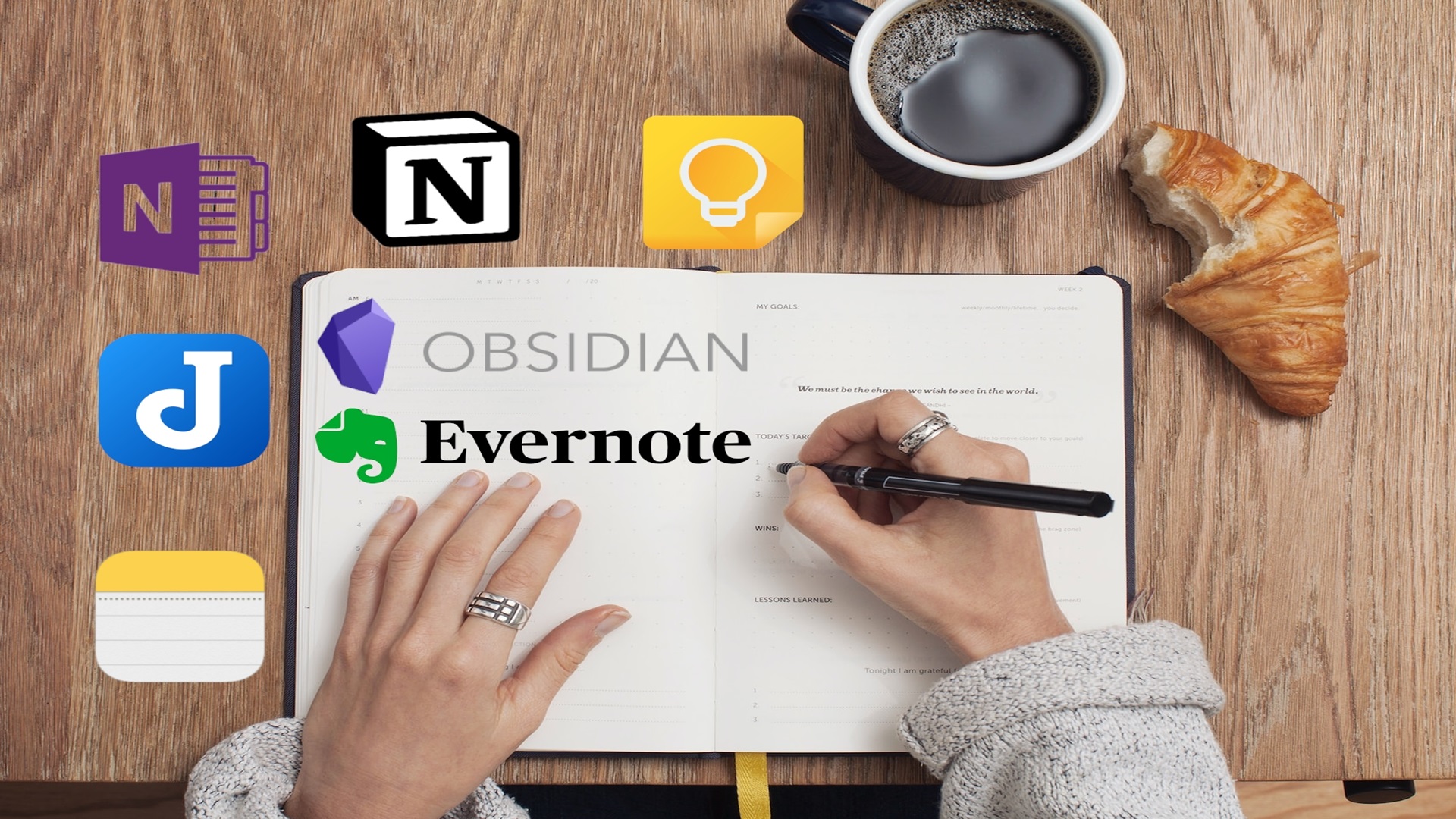
This is why it’s so important to have a tool to capture this information and take the stress of remembering everything off of yourself. This article details seven notetaking apps that can be game-changers for your professional and personal life if used correctly.
I have curated this list to include notetaking apps I am currently using and ones I discovered on my journey to create the perfect productivity system. These apps have helped me organize numerous work projects, aided me in studying and passing cyber security certification exams, and alleviated the burden of trying to remember everything happening in my personal life.
Notion
Notion is a complete workspace and productivity system. You can create, organize, and manage your work using its customizable interface and advanced features. These include:
- Blocks: These are inline components that you can use to arrange your notes in a visually appealing and organized way. They include: lists, tables, media, code snippets, files, and more.
- Page types: A variety of page types to use to contain your notes, such as databases, Kanban boards, templates, calendars, and other views.
- Integrations: Integrations with external tools enable you to sync your data and workflow across various platforms. Notion offers integrations with Google Drive, Slack, and GitHub, with this list constantly expanding.
Notion is also an excellent choice if you want to collaborate with others in real time or through Notion’s suite of project management features, where you can assign tasks, leave comments on pages, and track progress.
Who Should Use Notion
This notetaking app is ideal for two use cases:
- Individuals who have a lot of responsibilities: If you need to manage side hustles, multiple work projects, or a busy home life, Notion and its Teamspaces are the complete package, and at this level, it is entirely free.
- Teams or small to medium-sized businesses: Notion offers powerful collaboration and project management features, ideal for those seeking to establish an efficient information-sharing environment.
The tool includes price tiers for professional use, which offer additional features such as SAML SSO, advanced page analytics, user provisioning (SCIM), audit logging, and security controls.
My Thoughts on Notion
Notion is my favorite notetaking app for productivity and organization. I used it to organize and optimize my workflow. I have a Teamspace for my side hustles, personal life, work, and knowledge base. This allows me to segment my responsibilities and share my notes with colleagues and family so everyone is on the same page.
Notion has recently added an AI feature that allows you to “work faster,” “write better,” and “think bigger.” If you’re interested in leveraging AI to improve your notetaking, you can find out more here.
Obsidian
Obsidian is a notetaking app that uses the Markdown language to let users quickly style their notes as they take them. This means you can format your headings, add lists, link to internal or external sources, bold/underline/italicize your text, and create tables —all on the fly as you take your notes.
The two main selling points of Obsidian are:
- A powerful plugin system: This system enables users to fully customize their workspace through a vast library of developer- and community-based plugins. You can add themes, layouts, calendars, project management features, integrations with third-party apps, and much more. Plugins allow you to tailor Obsidian to suit your notetaking needs.
- Interconnecting ideas and information through links and different views: Most notetaking apps allow you to link to internal and external resources. Obsidian goes beyond this. It provides a bidirectional linking system that lets you create connections between related topics and navigate between notes effortlessly through backlinks. Additionally, the app’s “Graph View” enables you to visualize non-linear relationships between your ideas.
Markdown is not exclusive to Obsidian. It is a lightweight markup language used to add formatting and structure to plaintext. You may have seen it before on sites like GitHub and GitLab to format code documentation. To learn about Markdown syntax, read this guide.
Who Should Use Obsidian
Obsidian is ideal for anyone who needs to take extensive notes. Its integration with Markdown means you can format your notes to make them readable when reviewing them, and its linking system is excellent for finding connections between topics.
The app may have fewer features out of the box than the other apps mentioned in this article. However, it has a broad user base, continuously releasing third-party plugins that enable you to fully customize your experience. If you try out Obsidian, be sure to find the plugins that work for you!
My Thoughts on Obsidian
Obsidian is a great choice for taking and formatting notes at work or when studying. I use it with the Vim keybinding plugin to rapidly take notes as I consume training content, which I can later review and add to my knowledge base. Its integration with Markdown is beneficial for making my notes clear and concise when reviewing them later.
I also use Obsidian’s templates feature when at work. I use templates to organize the daily tasks I have to perform and improve the efficiency of my workflow. I no longer need to remember the intricacies of the tasks I need to perform daily. All are included in a template.
Joplin
Joplin is an open-source notetaking app that lets you capture and store your thoughts securely in the cloud. It supports various features, including Markdown formatting, code blocks, math notation, inline LaTeX rendering, multimedia, and collaboration. These features have made Joplin the de facto notetaking app in the technical and scientific writing community for a long time.
An undervalued feature of the app is its customizability. Joplin offers various plugins that enable you to customize the editor’s appearance and text editing features. However, it also features an Extension API that allows anyone to create their own scripts and plugins, maximizing the benefits they derive from the app.
Who Should Use Joplin
Joplin is designed for individuals who are on the go. Its cloud-native approach to notetaking means you can access your notes anywhere: at home, school, or work. Additionally, its excellent support for technical and scientific writing makes it an ideal choice for academics who require these specific features.
My Thoughts on Joplin
I like Joplin’s cloud-native approach to notes. Accessing my notes across devices makes it an incredibly versatile choice for anyone working from multiple devices or locations. That said, I found it lacking some customization options included in Notion and Obsidian.
The app gave a similar experience to apps like Microsoft OneNote and Evernote. If you liked those notetaking apps, you would likely feel comfortable with Joplin.
Apple Notes
Apple Notes comes pre-installed on iPhones, iPads, and Mac computers. It is Apple’s premier notetaking application and neatly integrates into its ecosystem. The app features a simple, user-friendly interface and minimalist design that adheres to Apple’s style.
Some noteworthy features of this app include:
- The ability to style notes with different fonts, styles, colors, text sizes, and basic formatting elements (e.g., lists, checklists, and headings).
- The capability to easily attach photos and videos you capture on your iPhone or iPad to a note.
- Markup and annotation features that let you comment on images, PDFs, and other attachments. This includes using the Apple Pencil to draw shapes and add signatures if you have an iPad.
Who Should Use Apple Notes
If you are heavily invested in the Apple ecosystem or just looking to take notes on your phone on the go, then Apple Notes is for you. The app lets you quickly create lists and capture thoughts without cumbersome features getting in your way. These notes are then seamlessly shared across any Apple device that shares your iCloud account.
My Thoughts on Apple Notes
I use Apple Notes to quickly capture thoughts on the go. I capture my ideas directly on my iPhone, and they automatically sync to all my other Apple devices. Then, when it’s time to take action on this idea (e.g., turning it into a project, writing about it in an article, or adding it to my to-do list), I can effortlessly access it from my phone or MacBook.
Microsoft OneNote
Microsoft OneNote is Microsoft’s take on a notetaking app. It allows you to capture, organize, and manage your notes. This app borrows many features from Microsoft Word, making it a powerful and intuitive tool for anyone familiar with other Microsoft products.
It shares many of the same features of Apple Notes – the ability to sync across devices, markup and annotate documents, and style or format your notes; however, it excels in two main areas:
- Organization of notes: OneNote enables you to divide your notes into sections and pages, allowing you to organize your work efficiently. This feature also allows you to tag and categorize your notes, making it easy to search for anything you need using a specific keyword or phrase.
- Support for web browser extensions: This support allows you to enhance the functionality of OneNote when browsing the web (e.g., saving web pages, articles, and screenshots directly into your notes).
Who Should Use Microsoft OneNote
If you use Microsoft products and enjoy their features, consider using Microsoft OneNote. It is a versatile and feature-rich application ideal for those who frequently study for school or cyber security certifications.
If you use other Microsoft products at work, OneNote may be a great solution to integrate with your current workflow. It has collaboration features to share notes with colleagues through Teams, SharePoint, or Outlook.
My Thoughts on Microsoft OneNote
Past organizations I have worked for have used Microsoft OneNote as a documentation tool. It is an excellent, centralized repository to keep your team’s documentation, processes, and shared knowledge if you work in an organization that heavily utilizes Microsoft products.
Evernote
Evernote used to be one of the most popular notetaking apps before Apple, Microsoft, and Google heavily invested in their own products and used their wide-reaching platforms and ecosystems to begin dominating the market. Evernote focuses on being an all-in-one organization system that can help you tackle projects, take notes, and schedule your life. It offers free and paid plans to achieve this tagline.
At its free tier, the app has many of the same basic features as Apple Notes. However, once you start paying for this app, there are benefits that some of the other notetaking apps on this list lack. These include:
- The ability to integrate with your Google calendar to schedule events, due dates, and reminders.
- The ability to search text inside images, docs, and PDFs.
- Custom templates to make your notetaking more efficient (Obsidian and Notion also have this feature).
- Integration with Slack, Salesforce, Microsoft Teams, and others (Notion and OneNote provide similar integrations).
Who Should Use Evernote
Evernote is designed for professionals who want to seamlessly integrate with various other platforms out of the box (e.g., Google, Slack, Microsoft, Zapier, etc.). It is a good alternative if you need to integrate with various apps rather than sticking to a single ecosystem and have the money to pay for the Personal or Professional tiers of the apps.
My Thoughts on Evernote
Evernote is a legacy product that has been overtaken by free alternatives, such as Notion and Obsidian, or by big tech players like Apple, Microsoft, and Google. It can’t compete with these free alternatives and make money, so I only see it becoming less prevalent in the future. If you want the paid features included with Evernote, look at Notion.
Update on Evernote: They have recently had mass layoffs after being acquired by mobile developer Bending Spoons and shifted most of their operations to Europe. As such, the future of this notetaking app is up for speculation but they are talking about a “bold future for Evernote” in a recent press release.
Google Keep
Google Keep is Google’s answer to Apple Notes. It is a notetaking app with a simple interface that lets you quickly capture and organize your thoughts, ideas, reminders, and to-do items. The app is particularly popular on Android devices and Chromebooks, as this ecosystem enables easy note syncing.
Google Keep shares many of the same features with the other simpler notetaking apps mentioned on this list (e.g., basic styling and formatting, checklists, collaboration features, and the ability to search your notes). That said, it does have two stand-out features:
- Integration with Google services: This includes Google Docs, Google Calendar, and Gmail, allowing you to easily export your notes to Docs, add a reminder to your Calendar, or save an email to Keep.
- An Optical Character Recognition (OCR) feature: This allows you to extract text from images, making it effortless to turn handwritten notes into digital notes.
Who Should Use Google Keep
This app is ideal for anyone who frequently utilizes the Google ecosystem. It can integrate with other Google products (e.g., Google Docs, Google Sheets, Google Calendar) and features great built-in collaboration capabilities. If you love Google, you will love this tool.
My Thoughts on Google Keep
Google Keep is very similar to Microsoft OneNote. It’s great to have a centralized repository to store your team’s documentation, processes, and shared knowledge. But, instead of using Microsoft services, it uses Google services. Because Google services tend to be free, they are ideal for startups or entrepreneurs who want to avoid spending money on Microsoft.
Conclusion
Notetaking apps are becoming more and more important in our daily lives. You will use them to capture ideas, organize your work and professional life, and create reminders for yourself. In cyber security, you need an app that can keep up with your busy schedule and take some of your cognitive load by reducing the things you need to remember.
I use several notetaking apps to accomplish different objectives:
- Apple Notes lets me capture and sync notes on the go to my Apple devices.
- Notion is my “second brain,” which I use to organize my projects and maintain my knowledge base.
- Obsidian is the app I use to quickly take notes when I’m working or studying, using its templates, Markdown formatting, and support for Vim motions.
This is just my notetaking app stack. You could easily swap Apple Notes for Microsoft OneNote or Google Keep and Notion for Evernote. The choice is yours. Just make sure you think about your notetaking strategy and set yourself up for success. Cyber security is hard enough. Use the tools out there to your full advantage!




Frequently Asked Questions
What Are Good Pentest Notetaking Apps?
Many pentesters favor local-first, Markdown-based apps like Obsidian or Joplin for their flexibility, plugin support, and control over sensitive data. Classic hierarchical tools, such as CherryTree, are also excellent for structuring findings. The best choice ultimately depends on the features that support easy templating, code block formatting, and screenshot embedding to streamline evidence collection.
What Notetaking Apps Include Code Snippets?
Most modern notetaking apps designed for technical users offer robust support for code snippets, often with syntax highlighting. Popular applications like Notion, Obsidian, Joplin, and Evernote all feature dedicated code blocks that automatically format and color-code various programming languages. This makes it easy to save, read, and share code directly within your notes.
What is the Best Notetaking App for Cybersecurity?
For cyber security, the best notetaking apps prioritise local-first storage and robust security features, with Obsidian and Joplin being top recommendations. Obsidian is favoured for its powerful linking capabilities and customisation, which help in building a knowledge base. At the same time, Joplin is praised for its open-source nature and strong end-to-end encryption with flexible syncing options. For a more traditional hierarchical structure, CherryTree remains a long-standing favourite, especially within the penetration testing community.
What Are Encrypted Notetaking Apps I Can Use?
For robust, zero-knowledge privacy, apps like Standard Notes and Notesnook are designed with end-to-end encryption as a core, default feature, meaning no one but you can ever access your content. Alternatively, open-source apps like Joplin also offer a powerful end-to-end encryption option that you can enable to protect your notes before syncing them across devices using various cloud services.
How Can I Keep My Notes Safe?
To keep your notes safe, prioritise using applications that offer local-first storage or strong end-to-end encryption, which ensures only you can read your content. Always secure your account with a strong, unique password and enable multi-factor authentication (MFA) wherever it is available. For an added layer of security, be mindful of what sensitive information you store and consider encrypting the entire device on which your notes are stored.