

How do you collect data? Do you browse a website, scroll through all the content, and manually copy and paste your desired data? What if I told you there was a much more efficient way to save you time and energy? Let’s dive into the world of web scraping!
Web scraping allows you to automate your data collection by harnessing the power of code to search, filter, and export data from your favorite collection sources. It is a game-changer for cyber threat intelligence analysts who must research new threats daily. However, web scraping can be overwhelming.
You must learn how to code, bypass common anti-scraping techniques, and figure out a way to automate it all in code or using a platform like Zapier.
This is where Octoparse comes in.
A no-code solution that will save you time, energy, and money. Let me show you how to use it to build your custom cyber threat intelligence web scraping tool!
Want to listen on the go? Check out this article in podcast form!
Web Scraping 101
Before you jump into building your own custom web scraping tool, you need to know what web scraping is.
Suppose you want to find out when your favorite shoes are on sale. You could log in to your favorite online retailer, search for the shoes you want, and check if there are any discounts on them or if their price has changed since yesterday.

Now, you don’t just want to rely on one retailer, so you repeat the process for your top ten clothing and accessory stores. Every day, you log in, check prices, and repeat. This sounds like a lot of work!
This is where web scraping comes to the rescue.
Web scraping enables you to automatically extract data from websites, such as prices for your favorite shoes, store it, and analyze it. You can just press a button to determine if the shoes you want are discounted today. The web scraper will do the hard work of looking up all the websites and finding this out for you!

You can use web scraping for much more than saving money. Here are some other use cases:
- Market Research: Collecting and analyzing competitor data, industry trends, and customer reviews.
- E-commerce: Gathering pricing and product information from competitors’ websites for price comparison or strategic planning.
- Lead Generation: Extracting business contact details like emails, phone numbers, and addresses from directories or websites for targeted marketing and outreach.
- Data Aggregation: Compiling information for content aggregation websites, news feeds, or knowledge repositories to support your business operations.
- Sentiment Analysis: Scaping data from social media or review platforms to analyze public opinion on a product, service, or topic to inform product development.
- Academic Research: Collecting data for projects, research papers, or case studies.
But there is a downside. Building your own custom web scraping tool is challenging. You need to know how to code and bypass common anti-scraping techniques like CAPTCHAs and rate limiting, and you need a way of automating it all.
Thankfully, Octoparse has you covered.
Ocotparse is a no-code web scraping tool designed to extract data from websites without requiring advanced programming skills. It provides a user-friendly interface that allows users to easily set up automated workflows for collecting data from websites.

You can use it to extract contact information from emails, find keywords on Twitter (X), get product data from Amazon, gather all social media links from a website, and much more!
Let me show you how to use it to extract Indicators of Compromise (IOCs) from cyber threat intelligence reports.
Web Scraping Cyber Threat Intelligence
Indicators are the bread and butter of cyber threat intelligence. You can use them to hunt down the Command and Control (C2) infrastructure bad guys use, investigate a cyber attack, or build custom detection rules with YARA.
Most cyber threat intelligence reports you come across will include indicators you can threat hunt for or build detections against. In fact, you will come across indicators so often that you will soon be wishing for a way to extract them from these reports automatically. This is where today’s tool comes in.
Let’s use the no-code platform Octoparse to build a custom web scraping tool to find and extract indicators from threat intelligence reports.
Installing Octoparse
To get started with Octoparse, head over to https://octoparse.com and create an account.
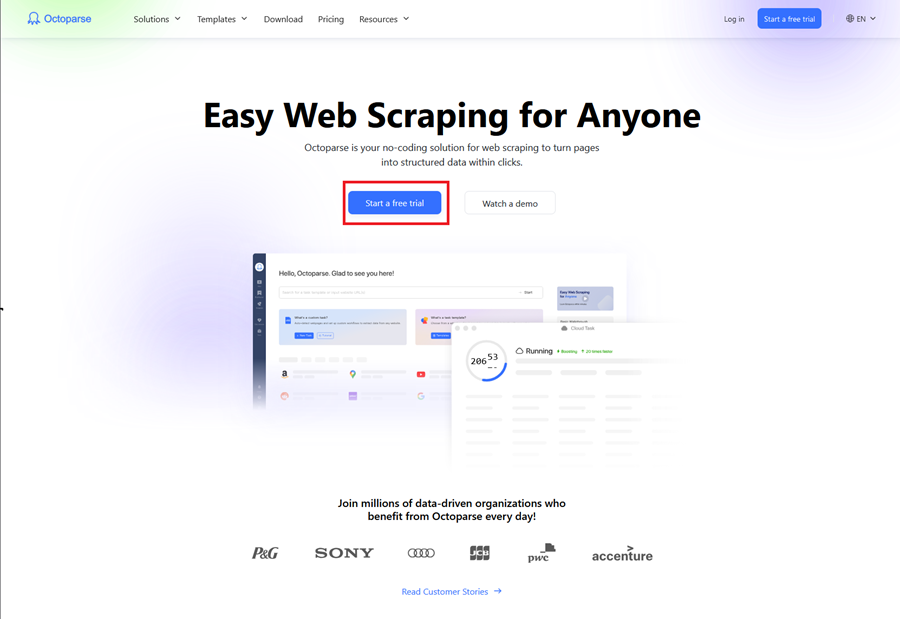
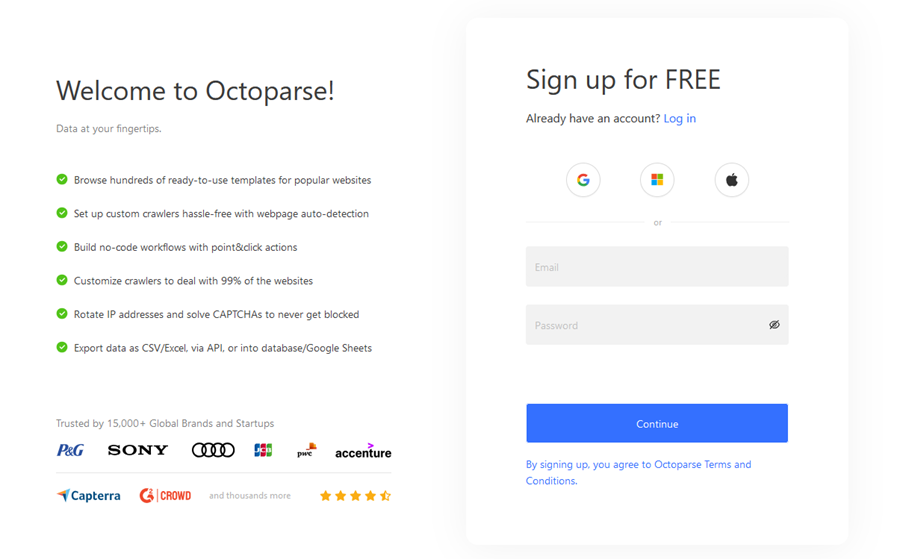
You can sign up with a Google, Windows, or Apple account or use an email address.
Once you sign up, you will be greeted by your home screen, where you can review your current usage. Click the Download option to get started using the tool.
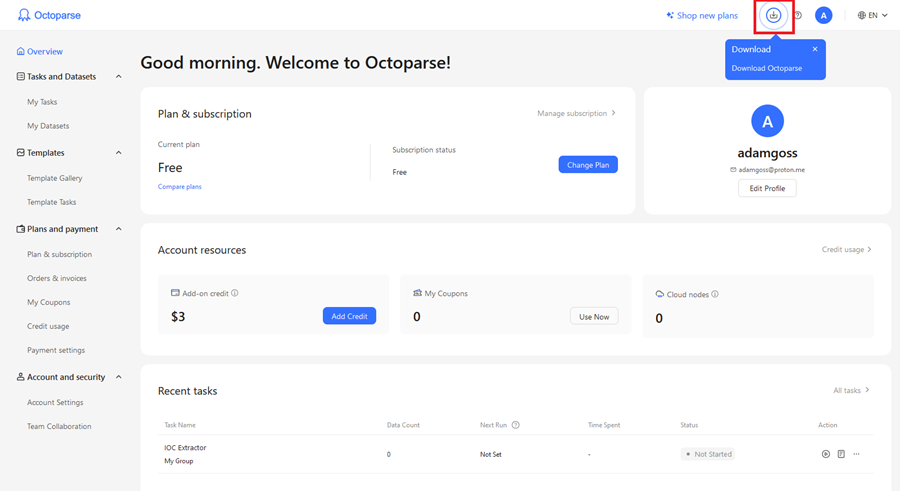
This will download the Octoparse Setup application and walk you through installing the tool locally. Once installed, you will be prompted to log in and presented with the Octoparse application dashboard.
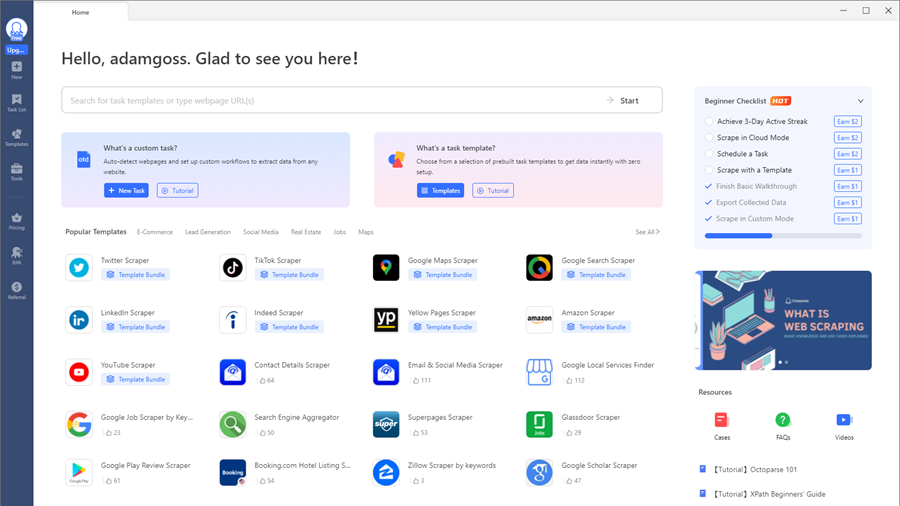
Okay, that’s enough setup. Let’s get started creating an indicator extractor web scraper!
Creating an Indicator Extractor Task
Octoparse comes with tons of pre-built web scrapers you can use out of the box. There are ones for scraping social media sites, web search results, job posting sites, ecommerce stores, and more!
These are called Templates and can be found under the Templates section on the side menu.
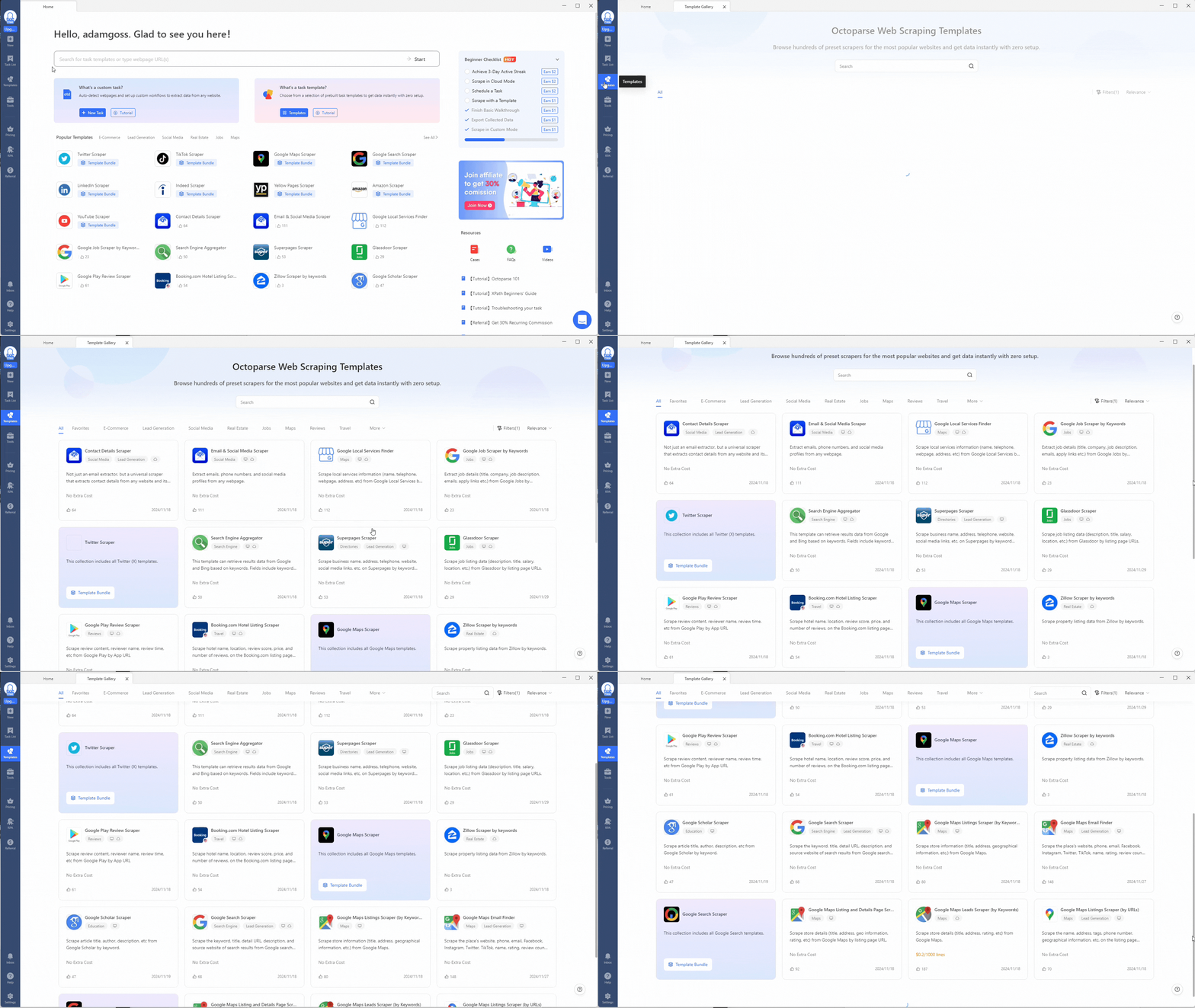
However, you must build a custom web scraper to create an indicator extractor using a Custom Task.
In Octoparse, tasks are a set of configurations for your custom web scraping program to follow. A task will usually scrape a page (or multiple pages) and return a result, which you can then do something with (e.g., exporting to a file or database).
Whenever you perform custom web scraping, you will start by creating a task, either a custom task or using a prebuilt template. For more details, read What is a task in Octoparse.
Step 1: Scraping Indicators of Compromise
Select the New section on the left-hand menu and click Custom Task.
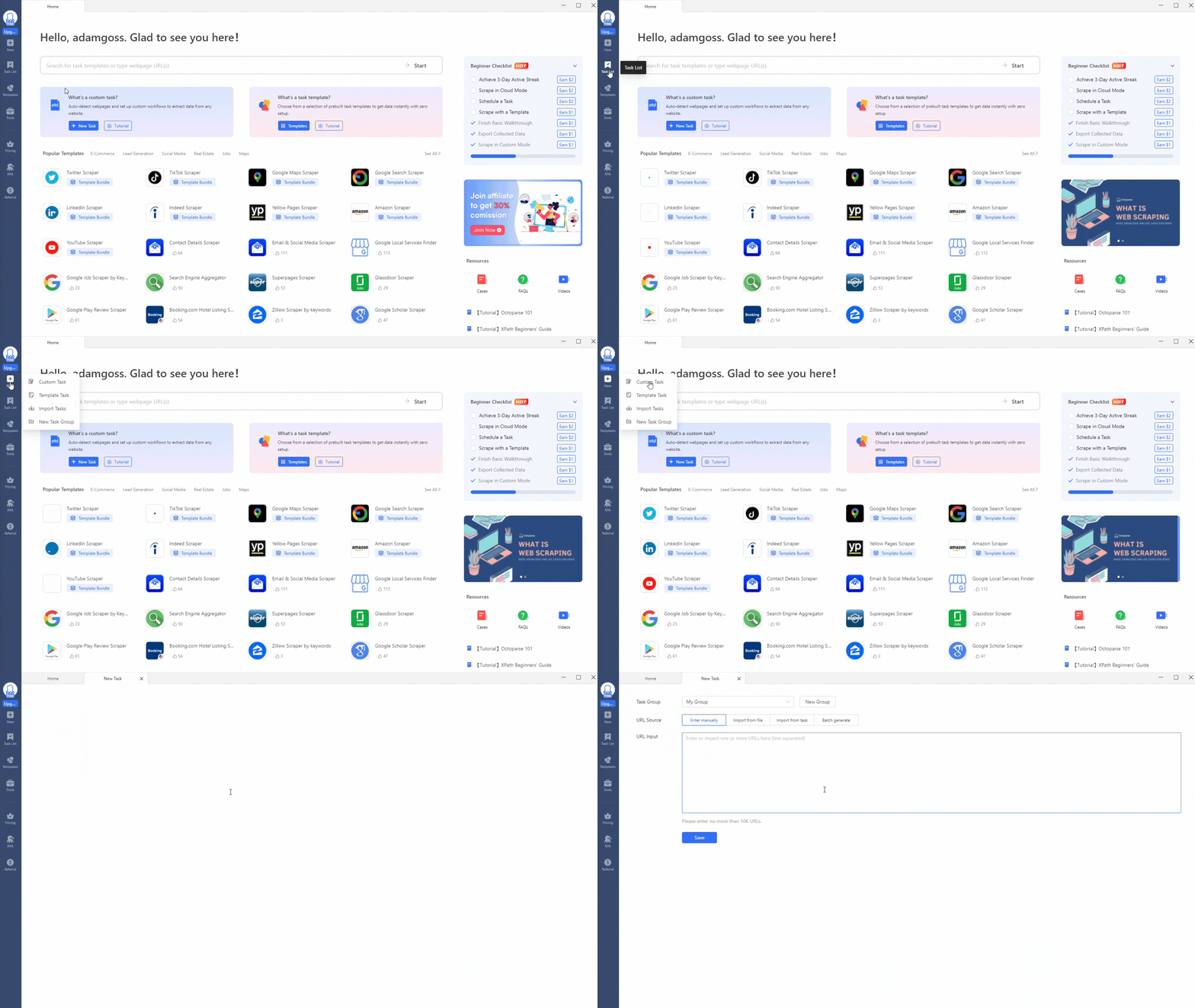
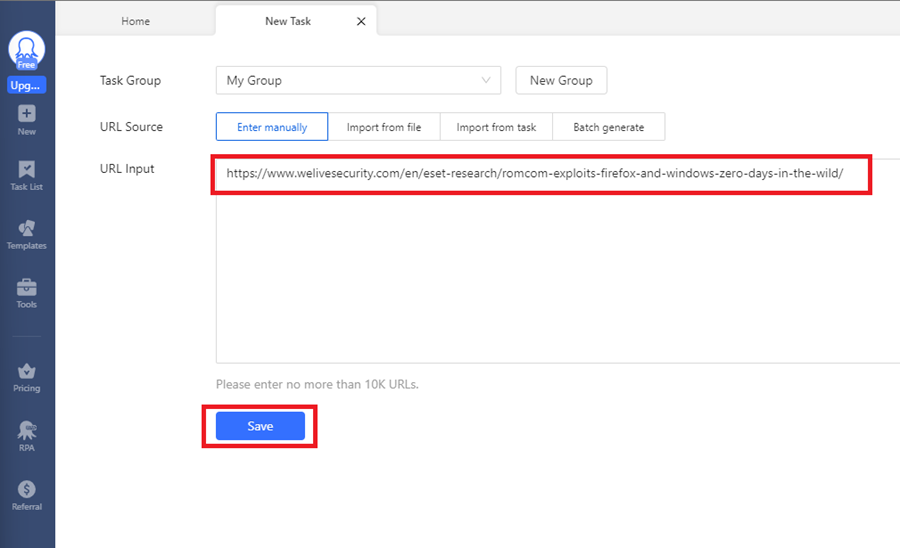
Next, enter the URL of the web page you want to scrape. I have used a cyber threat intelligence article by ESET Research on the RomCom threat group that is exploiting a Firefox vulnerability. It includes various indicators you can scrape for (file hashes, domain names, etc.). Click Save to continue.
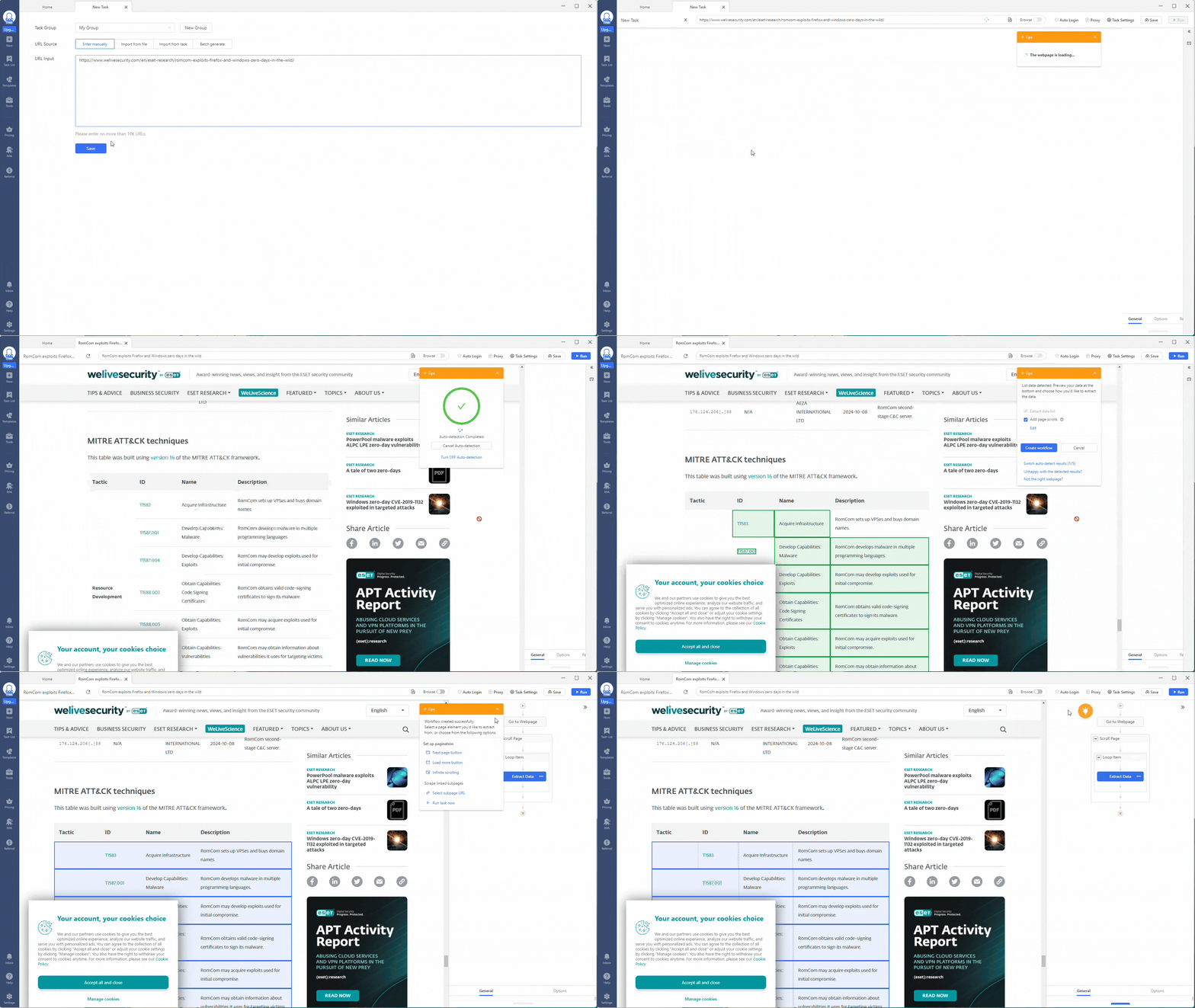
This will initiate the scraping process.
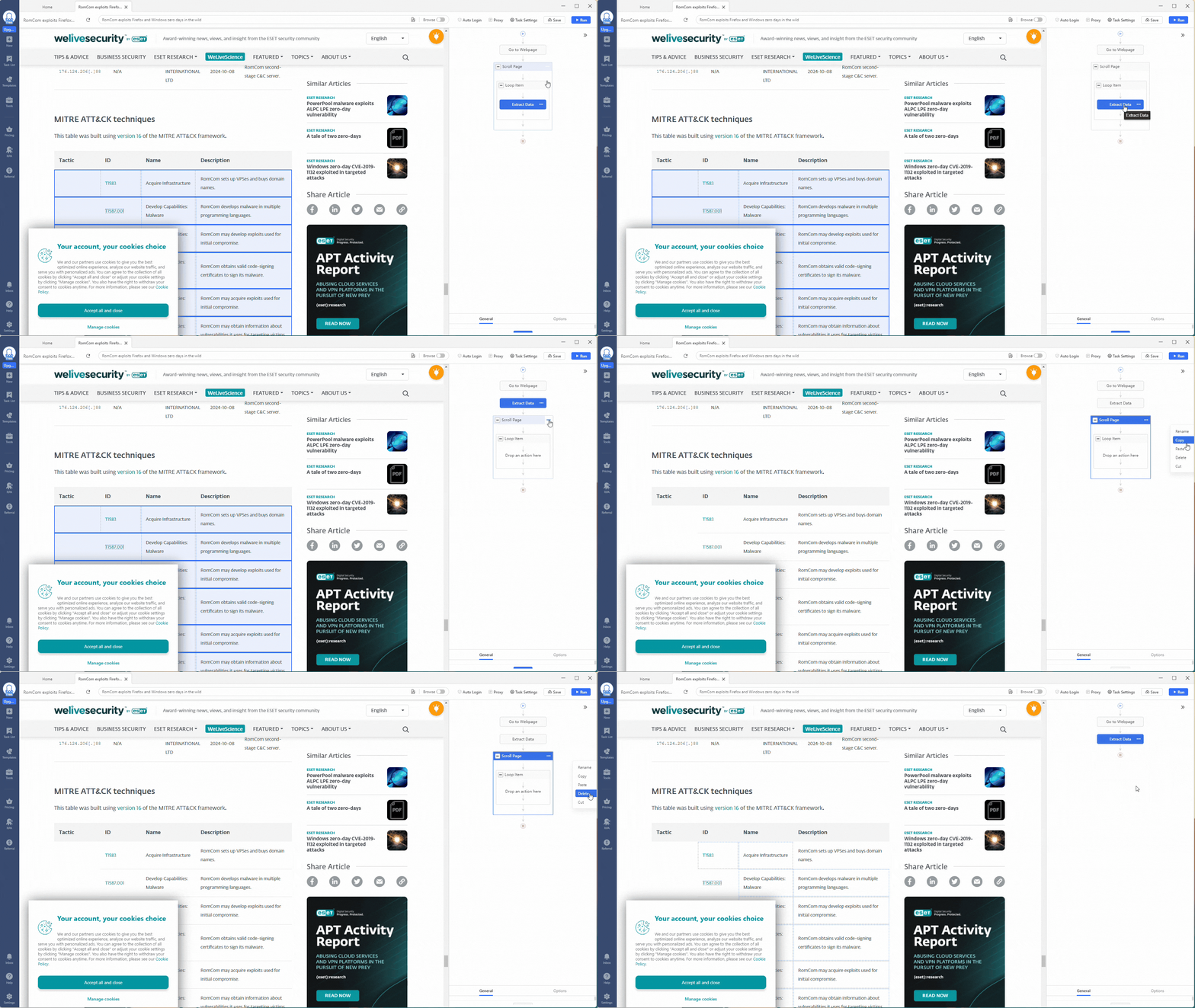
For your custom task, you need to adjust the workflow shown on the right. First, remove the Loop action, leaving only the Extract Data action.
Next, go into the Extract Data action and change the Absolute XPath field setting to //body. This will scrape the entire webpage for data (everything inside the HTML <body> tags).
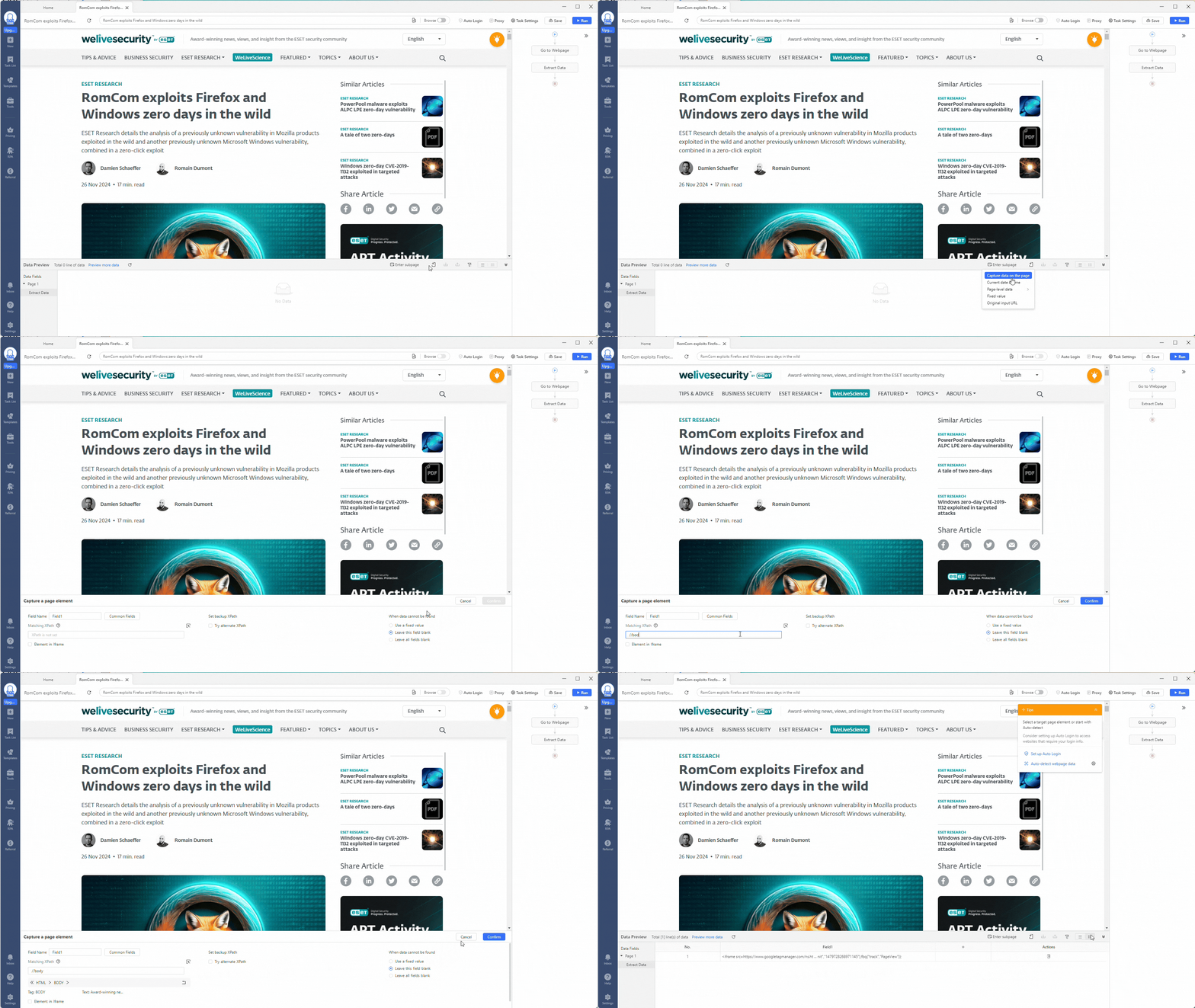
Now, you can start extracting indicators!
The easiest way to do this is by using regular expressions (regex), a sequence of special characters that lets you define a search pattern. But don’t worry. You don’t need to learn regex to follow along with this tutorial. Use the patterns provided.
If you want to learn more about regex, you can use free learning resources like Regex Learn, RegexOne, or RegExr. Regex is a very valuable tool in your cyber security analyst’s arsenal.
Using regex in Octoparse is easy. Click the Clean Data option by clicking the three-dot icon under the More heading.
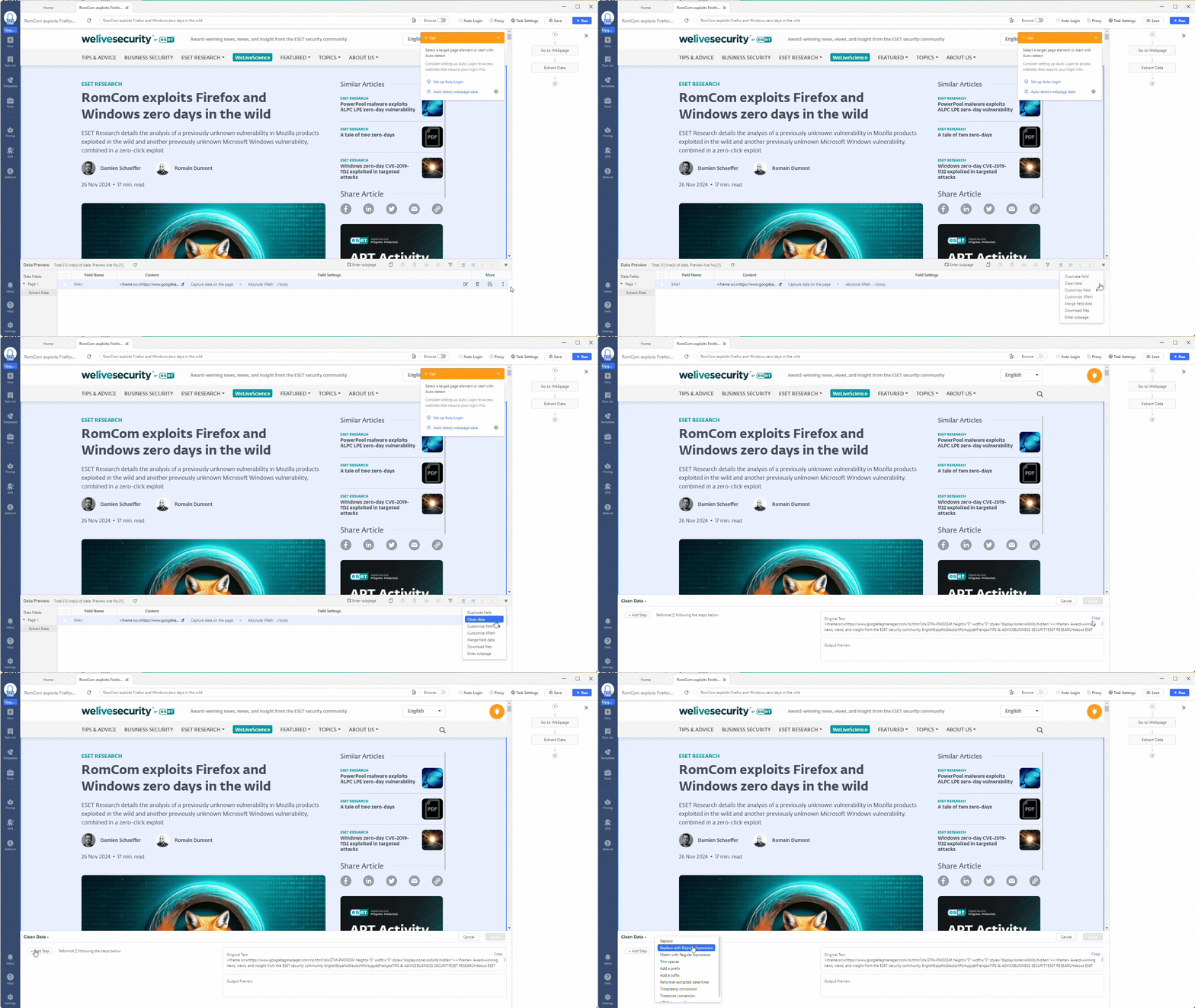
The Clean Data section allows you to refine the data you extract from a web page. You can replace text, trim spaces, convert timestamps, use HTML transcoding, and even add a prefix or suffix. Chaining these actions together by creating multiple steps is very powerful!
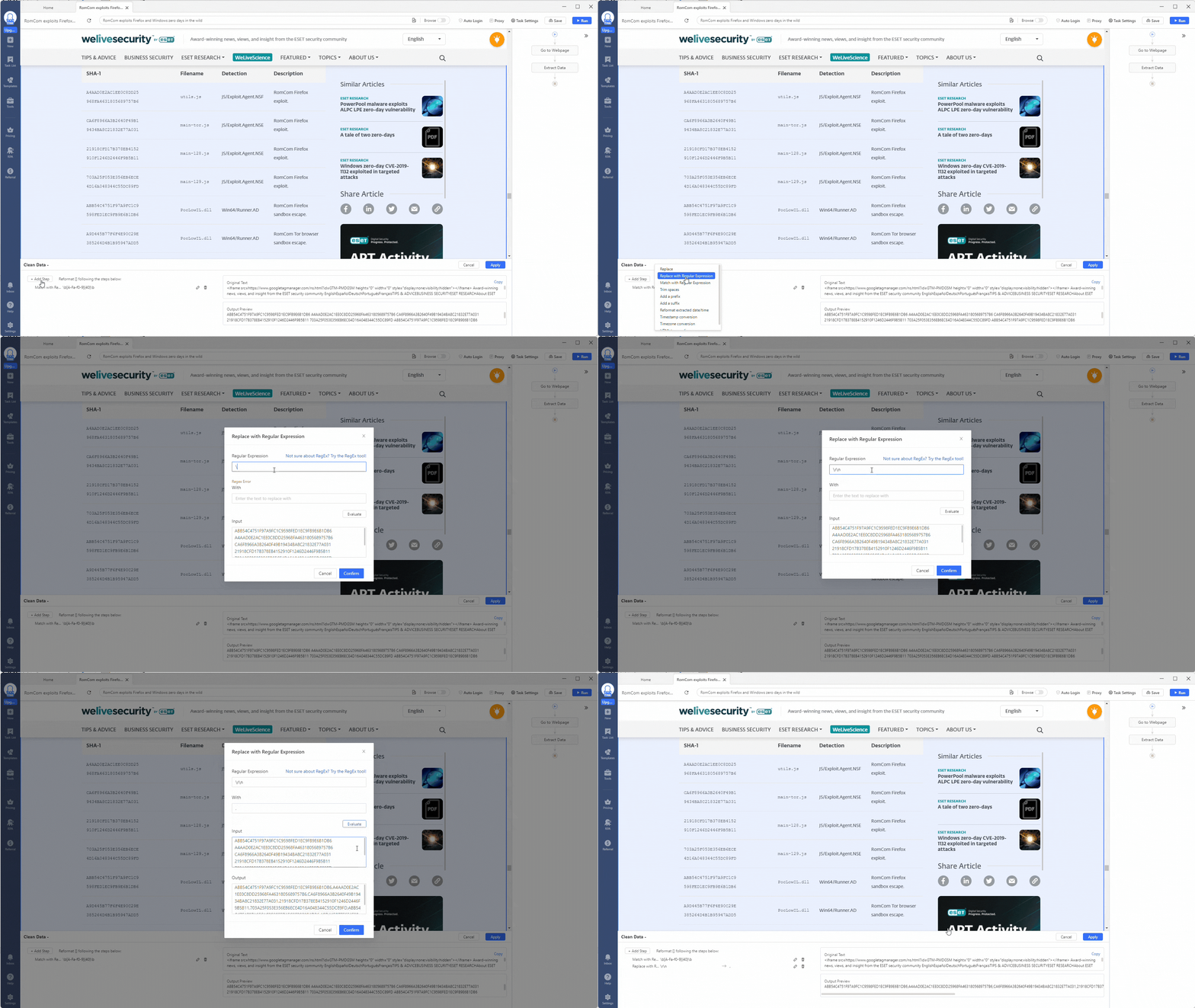
You can use the Match Regular with Expressions option to extract specific indicators for our indicator extractor scraper. Click the + Add Step button to add a cleaning step, then select Match Regular with Expressions.
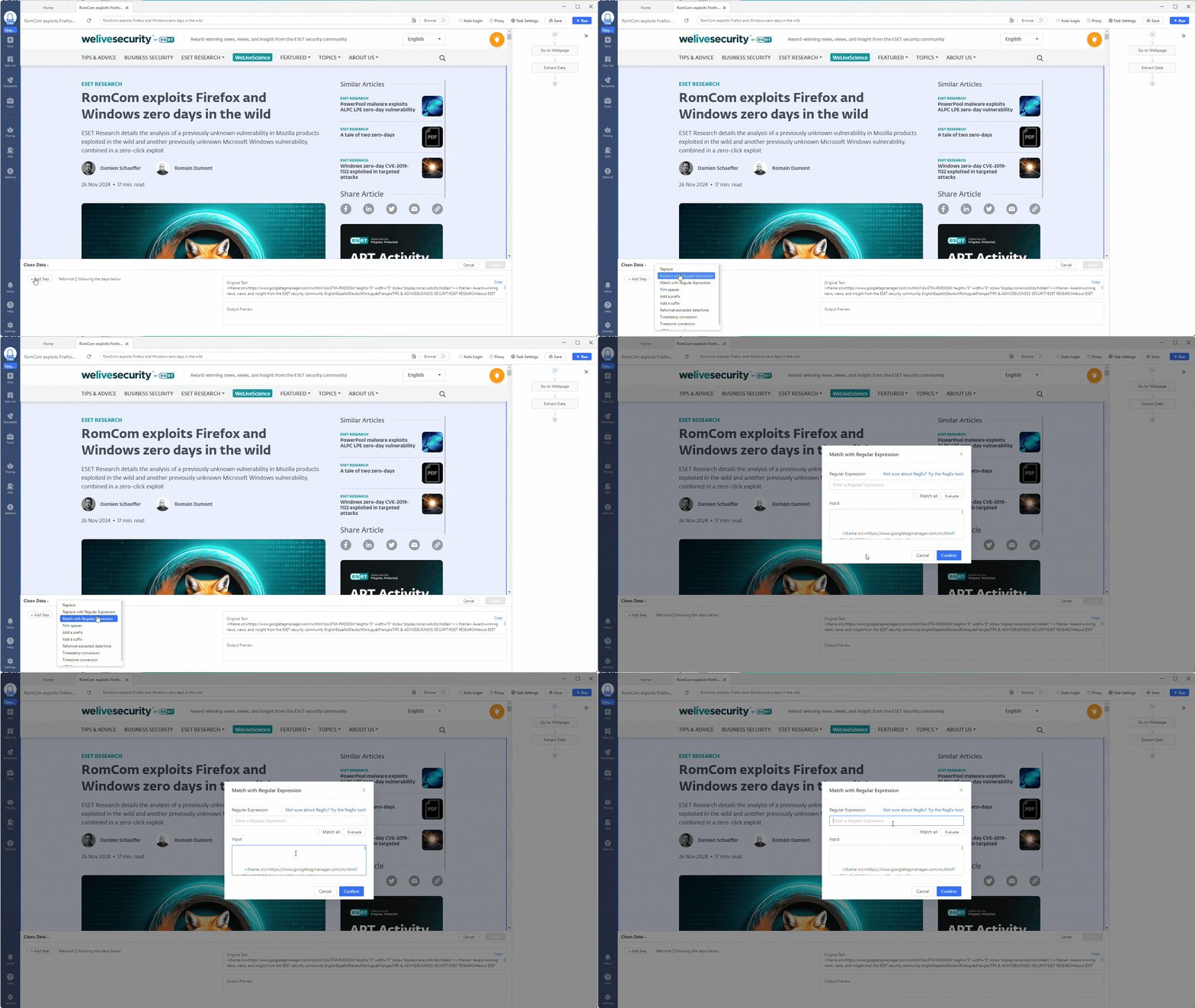
Let’s start by extracting all SHA1 hashes from this web page. Use this regex expression to match against SHA1 hashes: \b[A-Fa-f0-9]{40}\b.
These will be the hashes of the malware mentioned in the report, so extracting and using them in our security tools will be good. Remember to tick the Match all option to get all the hashes. Then, click the Evaluate button to see if the regex works.
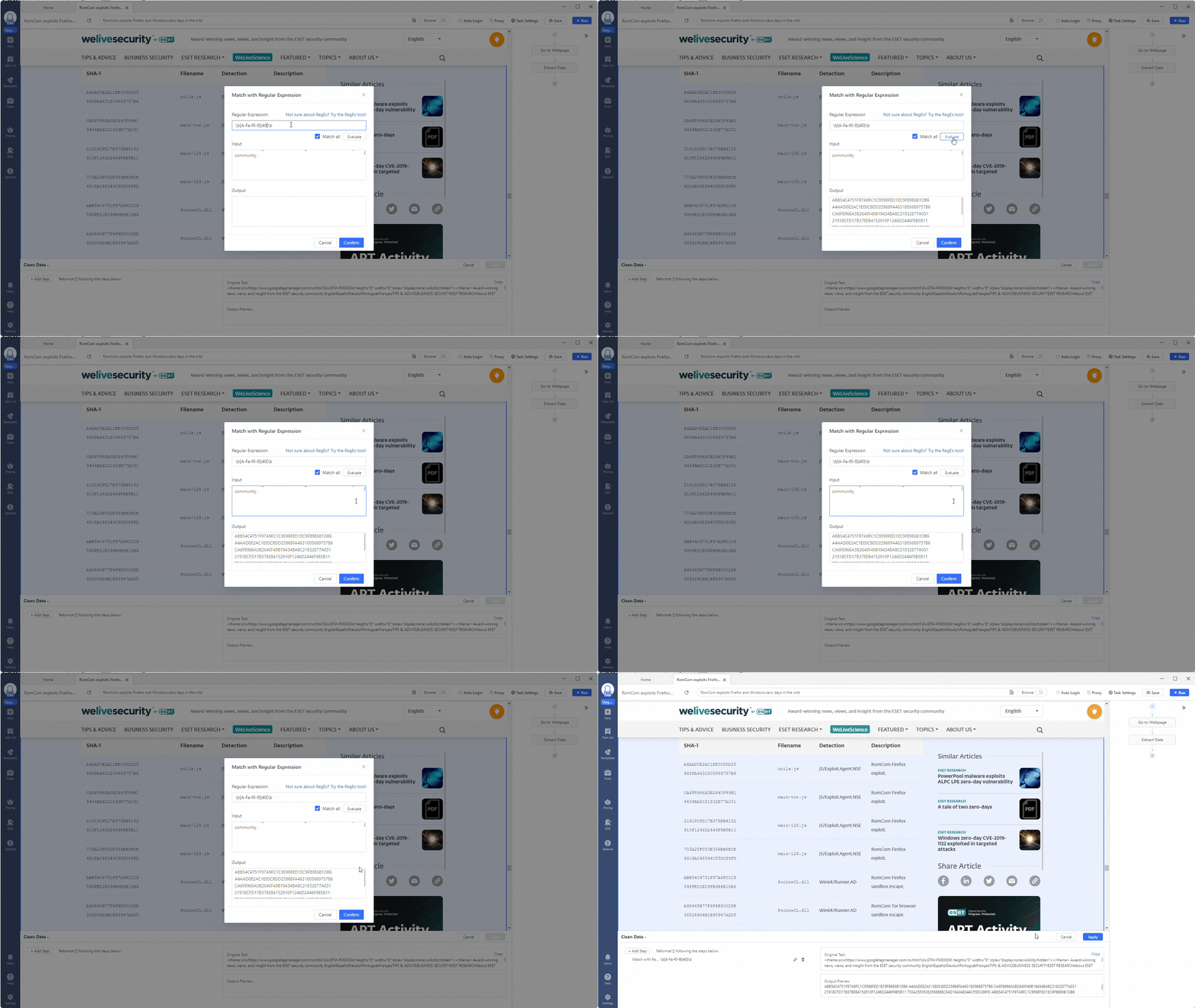
Perfect, the regex worked!
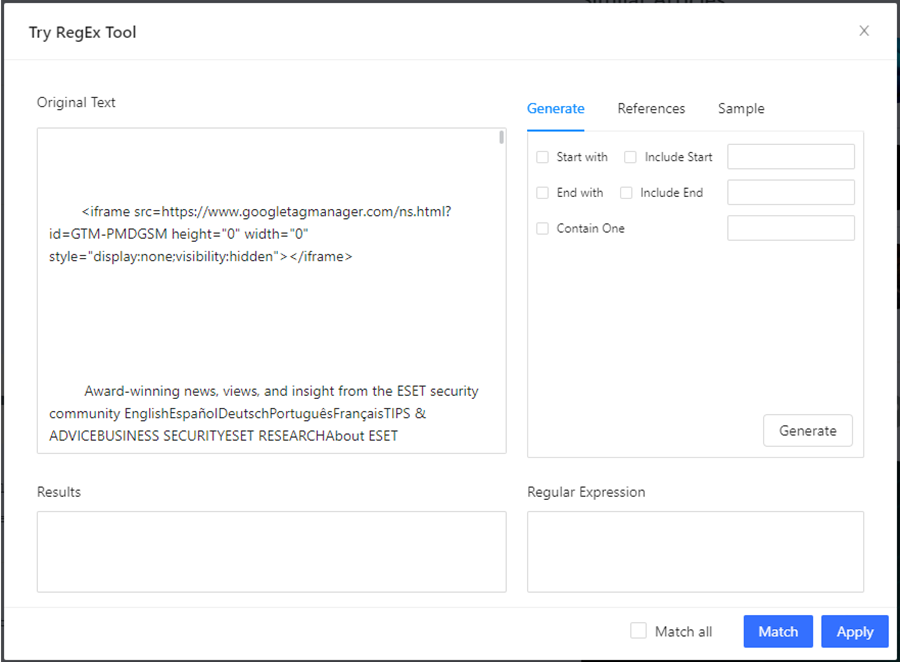
If yours didn’t, you can use the RegEx tool built into the Octoparse application to develop and test your regex expression. Navigate to the Tools section using the left-side menu or click the link in the Match with Regular Expressions pop-up window to access it.
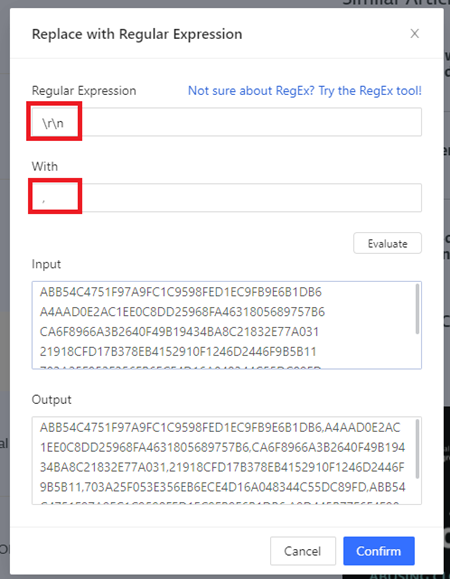
Before leaving the Clean Data section, perform additional data cleaning to format the extracted indicators for easier use when downloading them later. Click the + Add Step button again, but now select the Replace with Regular Expression option.
Replace all carriage return \r and newline characters \n with a comma ,. This will make parsing the data easier later.
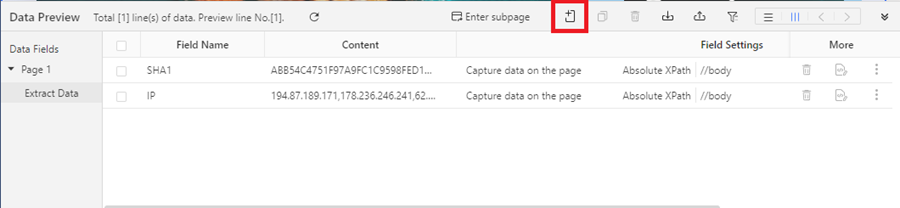
Great! You have set up your indicator extractor scraper to gather SHA1 hashes. All that’s left to do is repeat the process for SHA256 and MD5 hashes, domain names and IP addresses, email addresses, and any other indicator you want to scrape.
You can do this by clicking the Add Custom Field button, selecting Capture data on this page, and changing the XPath to //body, clicking on Clean data once more, and creating a new regex to match your chosen indicator.
Network indicators (domains, URLs, and IP addresses) are often de-fanged in threat intelligence reports. This means they have square brackets around dots [.] or xs in URLs hxxps://malware[.]com so that you don’t accidentally click on them and infect yourself.
You need to undo the defanging of these indicators before you can extract them. Luckily, Octoparse has just the data cleaning tool you need (Replace with Regular Expressions).
Here are some regular expressions you can use for other indicators:
- SHA256:
\b[A-Fa-f0-9]{64}\b. - MD5:
\b[A-Fa-f0-9]{32}\b. - IP addresses:
^((25[0-5]|(2[0-4]|1\d|[1-9]|)\d)\.?\b){4}$. - Domain names:
^((?!-)[A-Za-z0-9-]{1,63}(?<!-)\\.)+[A-Za-z]{2,6}$. - URLs:
(https:\/\/www\.|http:\/\/www\.|https:\/\/|http:\/\/)?[a-zA-Z0-9]{2,}(\.[a-zA-Z0-9]{2,}){1,2}\/[a-zA-Z0-9]{2,}. - Email addresses:
^[\w\.-]+@[a-zA-Z\d\.-]+\.[a-zA-Z]{2,}$.
Step 2: Running the Task
Once you have all your regular expressions set up, you can run your task by selecting the Run button at the top of your workflow.
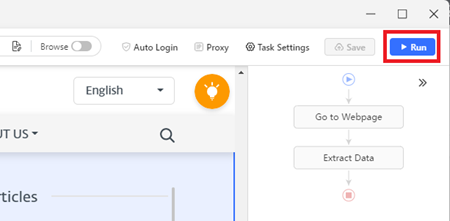
This will ask if you want to run the task on your device or in the cloud. For testing, select your device.
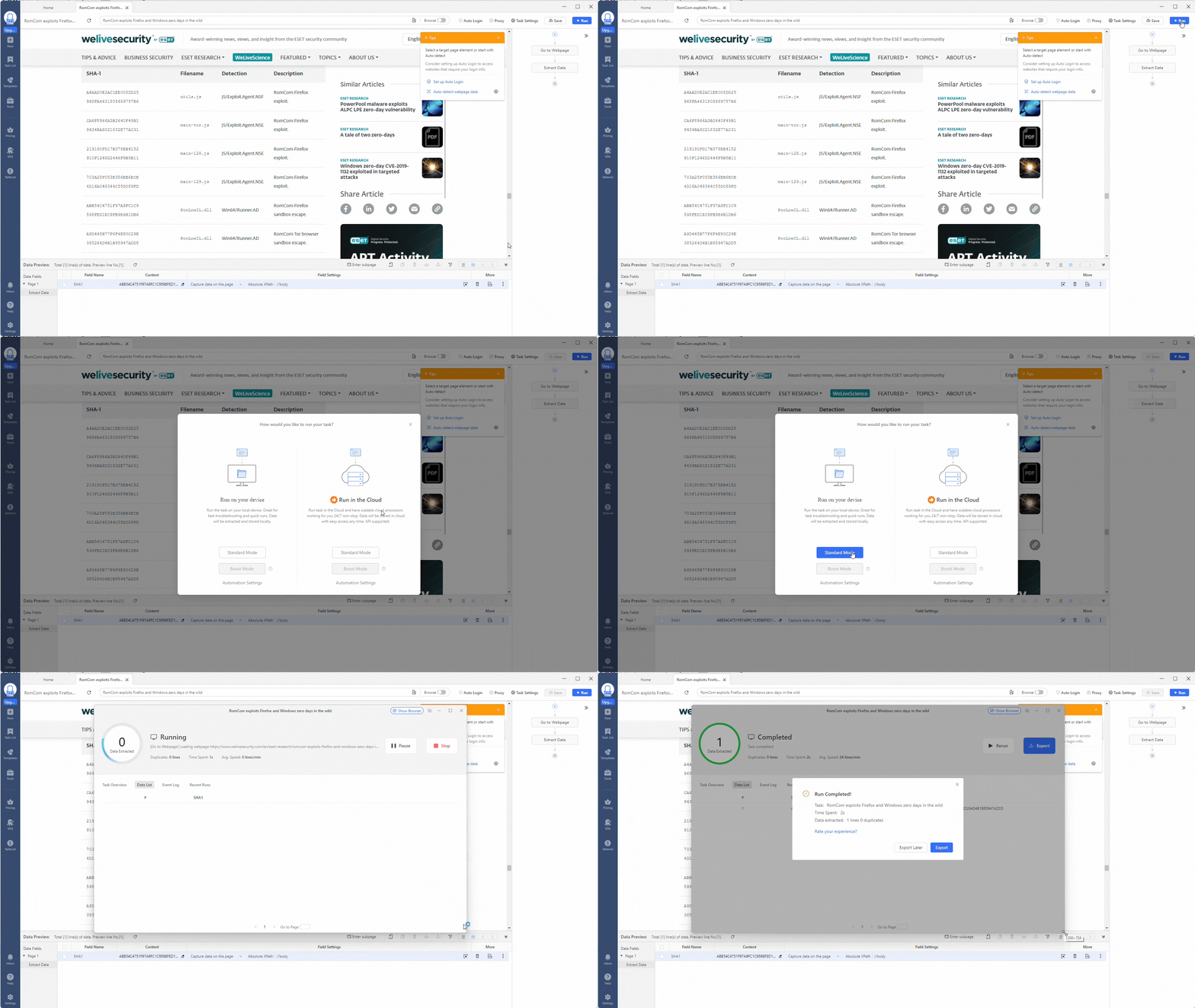
A pop-up window will appear showing you the status of your task and, once complete, will ask if you want to export the results. Select Export, tick the JSON option, and click Confirm.
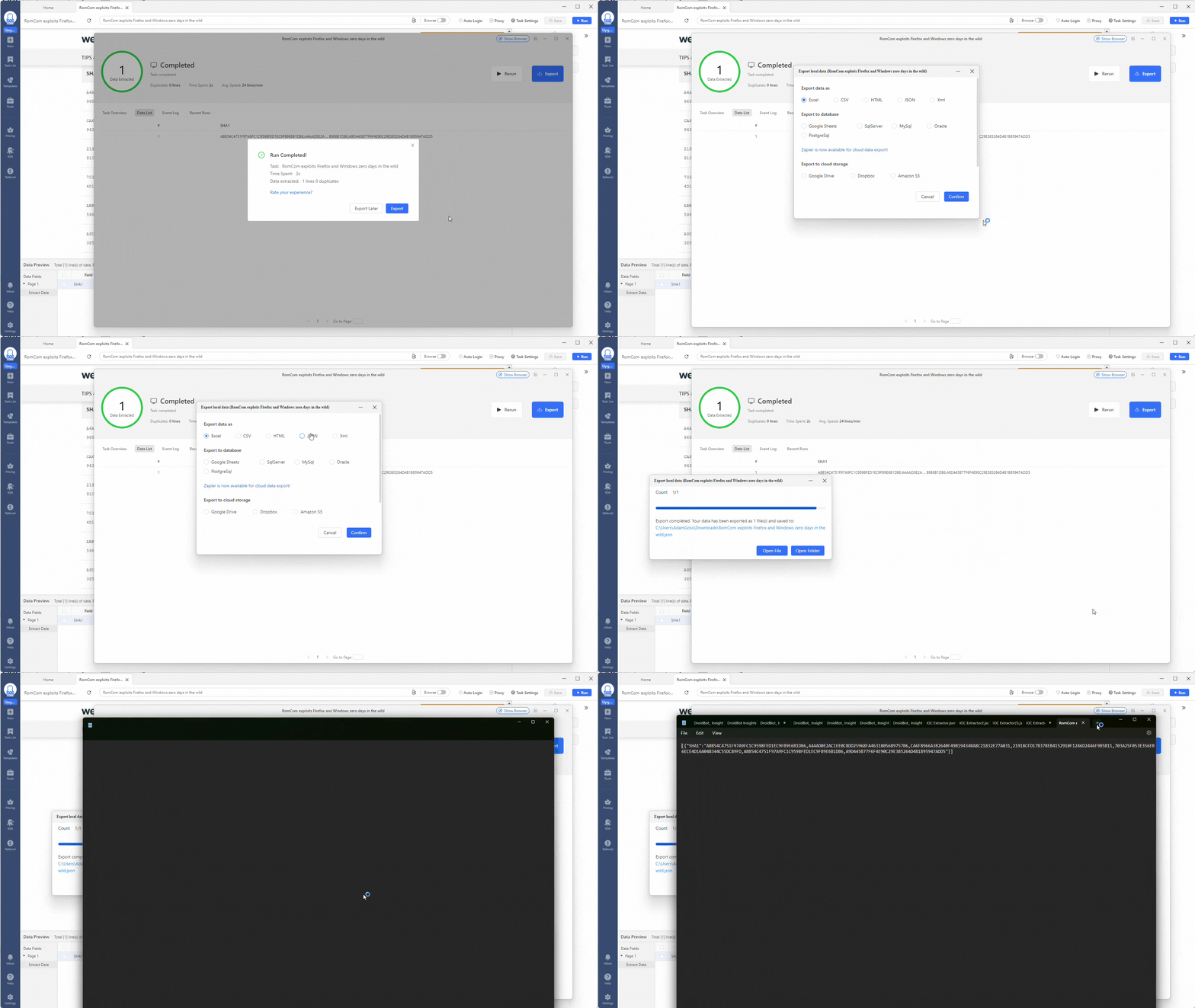
Awesome! You should now have all your results in a JSON file. Next up is using some PowerShell magic to make them easier to visualize and use.
Step 3: Using the Indicators
Currently, the indicators returned by your indicator extractor web scraper are in JSON format, with each key being the IOC type and the field a list of IOCs. This is not very readable and is challenging to use (the list is a text string rather than a JSON list).
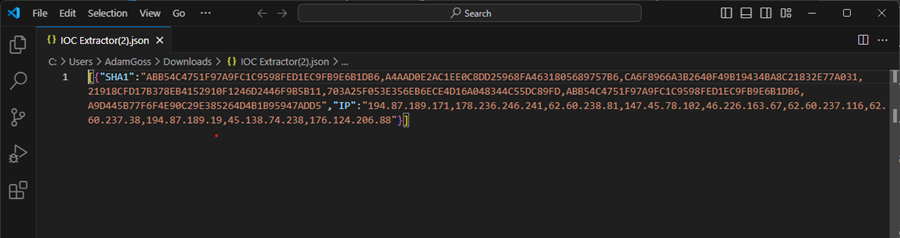
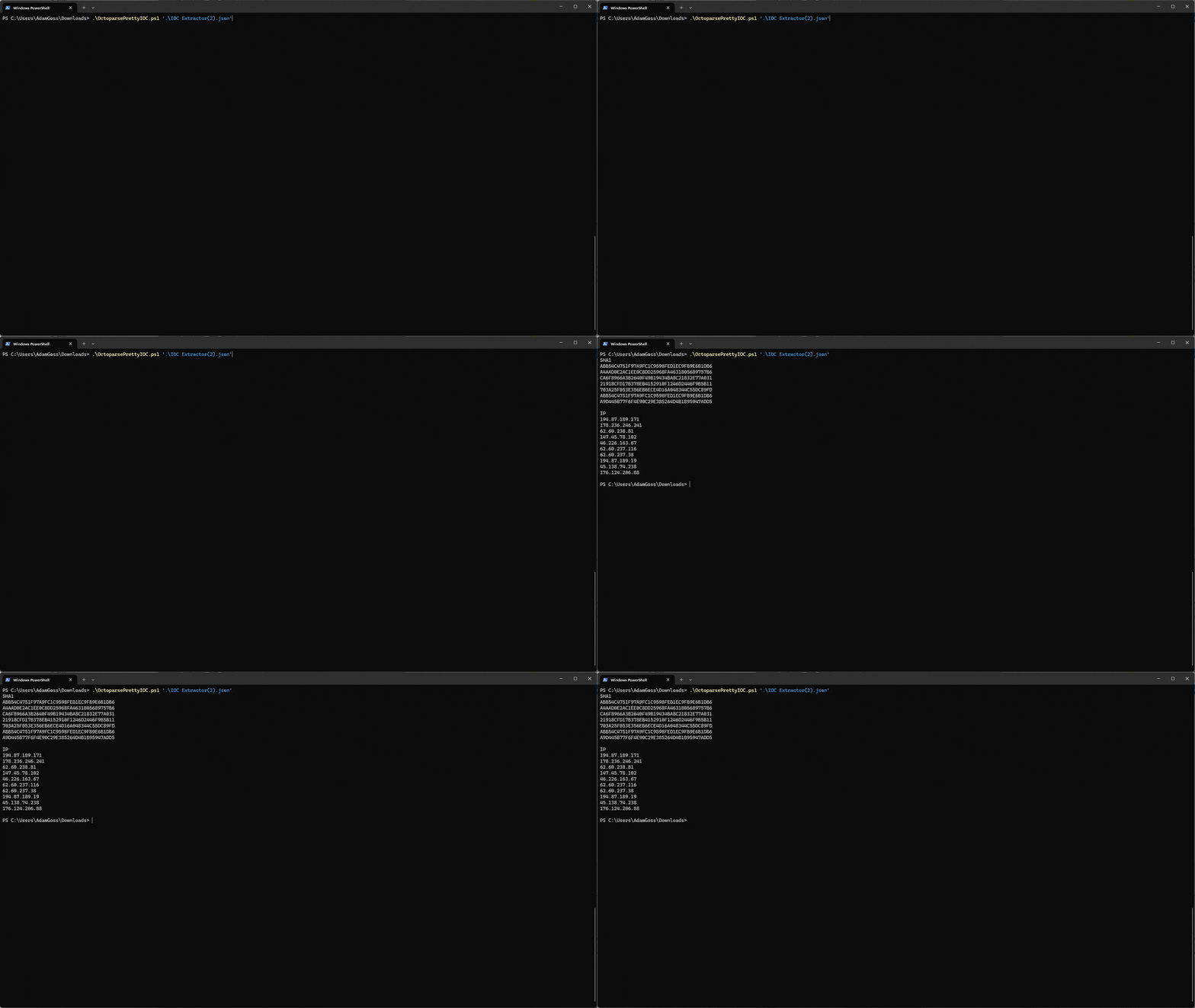
You can use this simple PowerShell script to improve the readability and usability of the output. This script takes your task output (JSON file) as input on the command line, parses it, and outputs a list of IOCs under each IOC type.
# get file from command line
param (
    [string]$jsonFilePath
)

# Check if the file exists
if (-not (Test-Path $jsonFilePath)) {
    Write-Host "File not found: $jsonFilePath"
    exit
}

# Load the JSON content from the file
$jsonContent = Get-Content -Path $jsonFilePath | ConvertFrom-Json

# print IOCs if present in JSON data
if ($jsonContent.SHA1) {
    Write-Host "SHA1"
    $splitText = $jsonContent.SHA1 -split ","
    $splitText
    Write-Host
}

if ($jsonContent.MD5) {
    Write-Host "SHA1"
    $splitText = $jsonContent.SHA1 -split ","
    $splitText
    Write-Host
}

if ($jsonContent.SHA256) {
    Write-Host "SHA256"
    $splitText = $jsonContent.SHA256 -split ","
    $splitText
    Write-Host
}

if ($jsonContent.IP) {
    Write-Host "IP"
    $splitText = $jsonContent.IP -split ","
    $splitText
    Write-Host
}

if ($jsonContent.DOMAIN) {
    Write-Host "DOMAIN"
    $splitText = $jsonContent.DOMAIN -split ","
    $splitText
    Write-Host
}
Now, you can easily view the IOCs detailed in the threat intelligence report, copy them, and use them in your security tools!
If you want to learn how to use the IOCs you extract, check out this article on the Indicator Lifecycle. It walks you through gathering, operationalizing, and utilizing indicators to find malicious behavior.
You can download this script on GitHub to customize it to your needs. You could automate the IOCs being added to your security tools, parse other IOC types, or write the output to a file.
Expanding the Capabilities of Your Task
So, you have a way of extracting indicators from threat intelligence reports. That’s great, but you might think, “I could have done all this with a bit of PowerShell or Python code. Why are you showing me a fancy no-code web scraper?”
Great question. There are several issues you will run into when coding your own custom web scraper:
- You need to know how to code.
- You must account for all the anti-scraping tools and techniques that will block you from scraping websites.
- You must invest your time and money in a solution that automates the process.
- Building and maintaining custom tools is a huge time drain.
This is where the Octoparse web scraping capabilities shine!
- It has an auto-login feature, so you don’t need to worry about logging into websites every time you run your scraper.
- It allows you to set up Octoparse proxies to bypass geo-fencing restrictions easily.
- It offers various Run Options and Anti-blocking settings (found in Task Settings), allowing you to bypass common anti-scraping protections, such as configuring a custom user agent, auto-clearing cookies, and bypassing Cloudflare, among others.
- It even lets you create automations that run your scraper at a set time and upload the results to a database, cloud storage, or local file!
These Octoparse web scraping tool features are easily configurable through Octoparse’s intuitive GUI, but for more details or a walkthrough, check out their blog.
You can also rename your task in the Task Settings menu and add a description so you remember what it does or how to use it.
With these features in mind, here are some ideas on how you could expand the current indicators extractor web scraping task:
- Try scraping other threat intelligence reports with the task to see how it holds up. Is there anything it currently doesn’t account for?
- Use Octoparse’s anti-blocking options like IP rotation, CAPTCHA solving, and Octoparse proxies to bypass common anti-scripting techniques.
- Create automation to have your task run on a schedule.
- Save your results to a database (Google Sheets, SQL Server, MySQL, Oracle, PostgreSQL), file (Excel, CSV, HTML, JSON, XML), or cloud storage (Google Drive, Dropbox, Amazon S3).
- Integrate other automation tools like Zapier to do more with the data you scrape (read the guide here).
- Export the data to an Amazon S3 bucket and run a Lambda function that automatically adds the indicators to your security tools like CrowdStrike Falcon, Microsoft Sentinel, or MISP. I might use this idea!
Conclusion
The ability to perform web scraping is a game-changer for any cyber threat intelligence analyst or cyber security professional. It empowers you to automate data discovery, extraction, and utilization through the power of code.
Unfortunately, building custom web scraping tools costs you time, energy, and money. A simpler and more efficient solution is Octoparse, a no-code tool designed to streamline your web scraping activities with pre-built templates, built-in bypassing capabilities like the Octoparse proxies, and advanced automation features.
You’ve seen how to create a custom web scraping tool using Octoparse. I highly recommend signing up for a free account and exploring what else the platform can do!
Let me know what features you find most useful in the comments. Have fun!




Frequently Asked Questions
Is it Legal to Scrape the Web?
It depends. The legality of web scraping depends on a website’s Terms of Service (TOS), the copyright of the content, data privacy laws (GDPR, CCPA, etc.), computer abuse laws (CFAA), and the impact it may have on the website.
Always check the website’s TOS, consider data privacy laws, and evaluate the ethical and legal risks before performing web scraping. If the website provides official APIs you can use to query for data, this is a safer alternative to scraping.
What is Octoparse?
Octoparse is a powerful and user-friendly software tool designed for custom web scraping, which is the process of automatically extracting large amounts of data from websites. It allows users to turn unstructured information from web pages into structured data, like spreadsheets, without needing to write any code. The Octoparse web scraping tool provides a visual interface that allows you to easily select the data you want to extract, and it generates a “crawler” to collect that information. Octoparse is used for a wide range of applications, including market research, lead generation, price monitoring, and academic research.
What is Octoparse Used For?
Ocotparse is a no-code web scraping tool designed to extract data from websites without requiring advanced programming skills. It provides a user-friendly interface that allows users to easily set up automated workflows for collecting data from websites.
The Octoparse web scraping tool simplifies custom web scraping with features like an intuitive drag-and-drop workflow designer, an in-built AI assistant, automation capabilities, bypasses for anti-scraping techniques, and hundreds of ready-made templates for popular websites.
Can I Use Octoparse for Free?
Yes. The Octoparse web scraping tool offers a free plan to help you get started on the platform. This is designed for small, simple projects with limitations on the number of tasks you can run and the amount of data you can export. For more details, check out all the Octoparse plans here.
Is Octoparse Safe?
Yes, Octoparse is generally considered safe to use when downloaded from its official website. The Octoparse web scraping tool itself is a legitimate, well-regarded application for custom web scraping and doesn’t contain malware. However, the safety and legality of using the tool depend entirely on how you use it and the data you choose to extract. Scraping publicly available data is often permissible, but extracting personal information, copyrighted content, or data from behind a login can violate privacy laws like GDPR and a website’s terms of service, which can carry legal risks.