

How much of your day as a cyber threat intelligence analyst is spent just trying to make sense of data? Forget the Hollywood image of frantic typing to disarm a digital bomb; the reality is often a quieter, more intense battle against an overwhelming flood of information. You’re a digital detective, and your crime scene is a chaotic jumble of log files.
For decades, our primary toolkit has been the holy trinity of Bash, Grep, and AWK—powerful, legendary tools forged in an era of plain text. But today, they often feel like using a magnifying glass to read a library where every book is in a different language. What if your command line were fluent in all those languages? What if it understood structure, seeing that a log file has columns and that JSON has key-value pairs?
There is a better way, and it’s called Nushell.
This article will demonstrate why Nushell isn’t just another shell, but a transformative analysis environment that can become the most valuable secret weapon in your cyber security arsenal. We’ll explore its core philosophy and walk through detailed, real-world security use cases that showcase its power.
What is Nushell?
So, what’s the magic behind Nushell? The core idea is revolutionary yet simple: everything is structured data. While a traditional shell like Bash sees a wall of text—a single, long string of characters—Nushell sees tables with rows and columns. It pipelines objects, not just text. Think of it as having a fully functional, command-line-native data analysis toolkit, like a blend of SQL and a spreadsheet, built directly into your terminal.

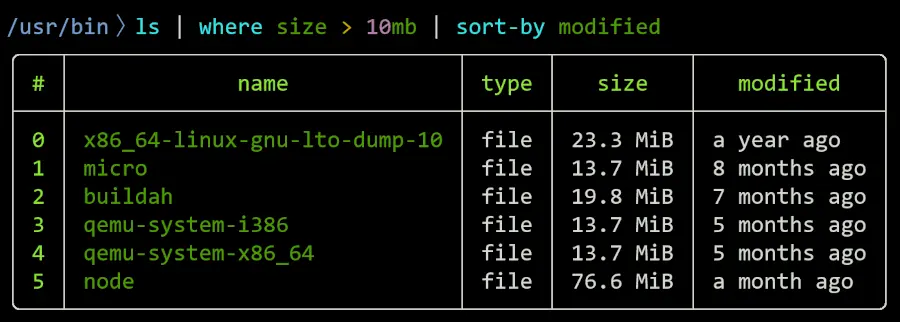
When you run a command like ls to list files, you don’t just get a string of names; you get a clean, sortable table with strongly-typed columns for name, type, size, and modified. This seemingly small change is a paradigm shift. It means you can manipulate the output immediately and reliably.
For example, to find the five largest files, you simply run ls | sort-by size | last 5. Compare that to the Bash equivalent, which might look something like ls -l | awk '{print $5, $9}' | sort -n | tail -n 5. The Bash command is not only more complex but also fragile—it can break if the number of columns in the ls -l command changes.
This is a game-changer because Nushell’s native understanding of structure removes the most tedious and error-prone part of command-line data analysis: manual parsing. It offers robust, built-in support for the formats we use daily, such as JSON, CSV, and YAML.
You can open a multi-megabyte JSON log, and it’s instantly a queryable object. Accessing nested data is as simple as get event.source.ip, a world away from the arcane syntax of jq. Open a CSV from a threat feed, and it’s a table ready for filtering. This means you spend less time debugging syntax and more time focused on the analysis.
The clear, tabular output provides clarity and significantly reduces cognitive load during high-stress incident response, helping to prevent costly mistakes. It also offers a robust, truly cross-platform solution that works consistently across Windows, macOS, and Linux, allowing teams to share scripts and workflows without modification and creating a unified language for data analysis.
Let’s explore some security use cases to see how you can utilize Nushell as a cyber threat intelligence (CTI) analyst.
Security Use Case #1: Analyzing Apache Logs
Let’s start with a classic scenario: hunting for a brute-force attack in an Apache access log.
Your goal is to find an IP address that is repeatedly and rapidly trying to access wp-login.php. With traditional tools, you’d chain together a fragile sequence of commands: grep 'wp-login.php' access.log | awk '{print $1}' | sort | uniq -c | sort -nr | head -n 10.
This works, but it’s brittle—a minor change in the log format could break the awk command. It’s also a dead end; if you want to see what else the top IP address did, you have to start a new grep command.
With Nushell, the process is intuitive, robust, and interactive.
First, you create a custom parser to transform the unstructured log into a structured table. You define the pattern once, naming each column: ip, timestamp, method, url, status code, user agent, etc. This parsed output is now a first-class data structure.
The entire investigation becomes a clear, readable pipeline: open access.log | parse "{ip} - - [{timestamp] “{method} {url} {protocol}” {status} {size} “{domain}" “{user_agent}” | head -n 20.
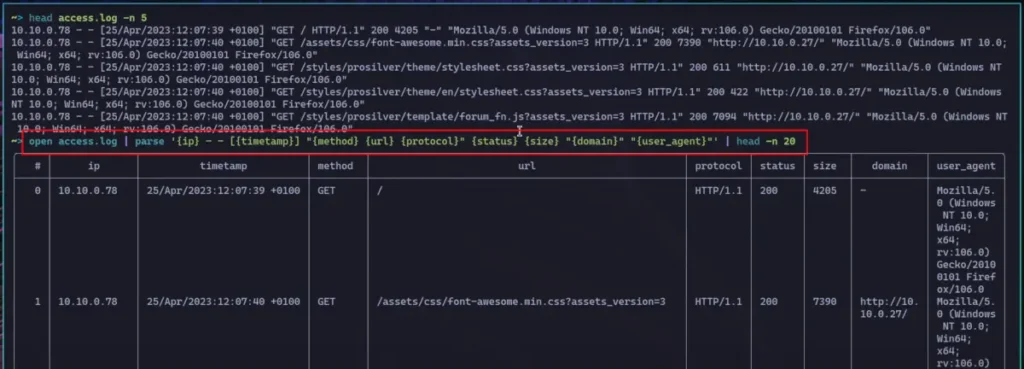
This single, elegant command can then have filters, aggregations, and other data operations applied to it. You can filter for a status, group by IP, and more! So, next, you can filter for nefarious threat actors trying to access that wp-login.php page by instantly re-querying the original parsed data for all activity from that address.
This command looks for any URLs that contain the keyword “login”: open access.log | parse "{ip} - - [{timestamp] “{method} {url} {protocol}” {status} {size} “{domain}" “{user_agent}” | select ip url | where url =~ “login” | group-by ip.
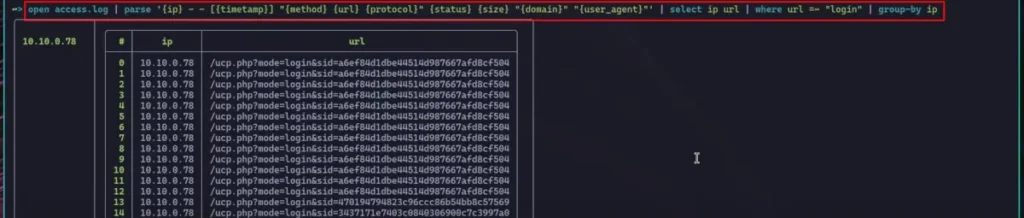
You can check what other pages they accessed or analyze their user agent strings for signs of automation, all within the same interactive session. This “manipulation” skill is vital for any cyber threat intelligence analyst.
But Nushell isn’t just for Linux; you can also use it to investigate Windows systems!
Security Use Case #2: Investigating Windows Event Logs
As a blue teamer, you often need to dive into the notoriously verbose and complex Windows Event Logs.
Looking for failed login attempts (Event ID 4625) using PowerShell can involve lengthy and cumbersome commandlets, such as Get-WinEvent. Parsing the nested XML data often requires tedious string manipulation or complex object property expansion.
Nushell streamlines this process dramatically. You can use a simple PowerShell command to export the security logs into a JSON file, and from there, Nushell takes over. Because it treats JSON as a native object, you can immediately and intuitively navigate the complex, nested structure.
You can filter for all events where the ID field equals 4625, then effortlessly extract specific, deeply nested properties, such as MachineName and Message, without complex parsing.
- Save Windows Security logs as JSON:
powershell.exe -c “Get-WinEvent -LogName “Security” | ConvertTo-Json” | save security.json. - Filter for logs with Event ID 4625 (failed login):
open security.json | where Id == 4625.
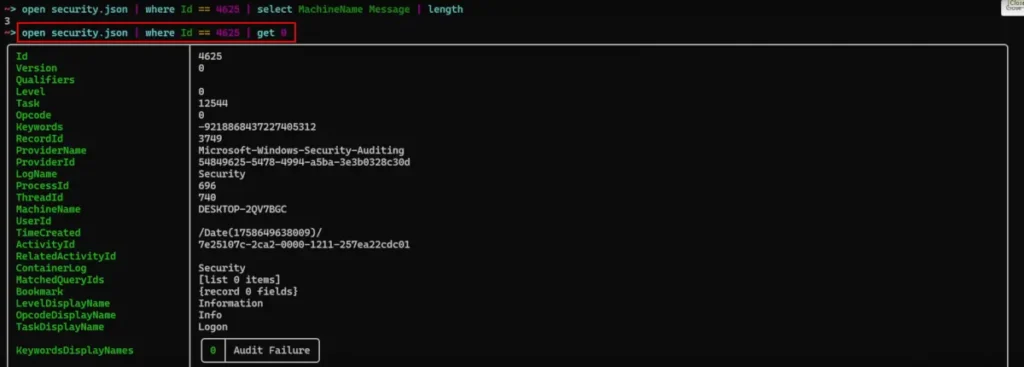
For example, after isolating failed logins, you can run a follow-up command to distinguish between a brute-force attack (many attempts against a single user) and a password spray (one attempt against multiple users).
This turns a tedious forensic task into a rapid analytical workflow, making it an indispensable tool for incident response and digital forensics within a security operations center. Let’s now turn our attention to those pesky Indicators of Compromise (IOCs)
Security Use Case #3: Correlating IOCs with Log Data
A core task in threat intelligence is correlating external data, like a list of malicious IP addresses (IOCs), with your internal logs. Imagine your threat intelligence team provides a CSV file with thousands of known-bad IP addresses.
The traditional approach would be a slow, clunky Bash script that loops through each IP in the CSV and then greps your massive log files for each one—a process that is both time-consuming and grossly inefficient, especially with millions of log lines.
Nushell makes this surprisingly easy and incredibly fast. You can load the entire CSV file of malicious IPs into a variable with a single command: let blocklist = open iocs.csv. This creates an in-memory table of your threat intelligence.
Then, after parsing your Apache access log, you can use one powerful command to cross-reference the two datasets: where ip in ($blocklist.ip | get ip_address). This command performs an optimized, in-memory, set-based comparison, instantly filtering your multi-gigabyte log file to show only the entries where the source IP address is present in your IOC list.
- Create a variable to hold parsed IOCs from CSV file:
let blocklist = open iocs.csv. - Search through Apache log file for IOCs:
open access.log | parse "{ip} - - [{timestamp] “{method} {url} {protocol}” {status} {size} “{domain}" “{user_agent}” | select ip url | where ip in ($blocklist | get ip_address).

This isn’t just a simple search; it’s effectively performing a database-style join on the command line. This powerful feature allows you to correlate data from two completely different sources—a raw text log and a structured threat intel feed—to find concrete evidence of a threat in seconds, not hours.
But how do you know what Nushell commands to run? Is there a way to interactively explore the data you’re working with? Of course..
Nushell Explore
What if you’re not sure what kind of data manipulation you want to perform, or you’re faced with a completely new and unfamiliar data source? That’s where the explore command in Nushell comes in.
It acts as an interactive data REPL (Read-Eval-Print Loop), a powerful environment for discovery and orientation. It’s like less, but for structured data. Just type <nushell commands> | explore to enter explore mode with the data you are piping in.
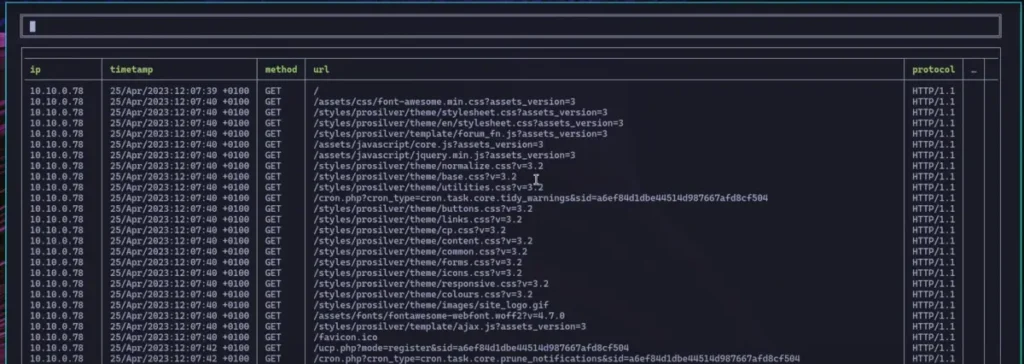
When you pipe your data into explore, it opens a beautiful, interactive pager where you can view your data as a table (kind of like less, but a lot more powerful). You can navigate through complex nested objects, drilling down into the data to understand its structure.
The real magic happens when you type :try, which opens a command bar at the bottom.
Here, you can experiment with filters and aggregations on the fly. You can test a where clause to see if it works as expected or try a group-by to see how it reshapes the data, all without affecting your main shell session. It’s a fantastic, risk-free way to build complex queries piece by piece.

Furthermore, if you find a specific record of interest deep within your dataset, you can exit the explorer, and it will return just that selected data back to your pipeline for further processing (provided you use the --peak option). This makes explore an invaluable tool for orienting yourself in new datasets and finding ways to get the answers to your investigative questions.
Summary
Nushell is more than just a pretty terminal; it’s a fundamental shift in how you interact with data. By treating everything as structured data, it gives you a powerful, intuitive, and consistent way to query, filter, and reshape data from almost any source.
For cyber security professionals, this translates directly to a more efficient and effective workflow. It means less time fighting with arcane tools and more time fighting threats. It leads to faster investigations, more robust and readable scripting, and clearer, more actionable insights.
Whether you’re a penetration tester analyzing scan results, a digital forensics expert sifting through artifacts, or a security engineer automating compliance checks, Nushell deserves a place in your toolkit. I encourage you to download it, install it, and start exploring.
Once you start thinking in structured data, you’ll never want to go back!




Frequently Asked Questions
How Is Nushell Different From PowerShell?
PowerShell is deeply integrated with Windows, designed to manage and automate Windows systems through its .NET framework and cmdlets that map directly to Windows APIs. Nushell, built to be cross-platform, focuses on data manipulation across operating systems. Its functional programming style, with immutable data and pipelines, leads to more predictable scripts for data tasks. Nushell resembles a data query language, while PowerShell feels more like an object-oriented scripting language for system admin.
Is Nushell Difficult to Learn?
The learning curve for Nushell is often gentler than for traditional shells, especially for those with a background in data analysis or SQL. The command names are intuitive and map directly to common data operations: where filters rows, select picks columns, group-by aggregates data, and sort-by orders the results. This makes it highly discoverable.
For example, to find the process ID of a running application in Bash, you might write ps aux | grep 'chrome' | awk '{print $2}'. The equivalent in Nushell is ps | where name =~ 'chrome' | get pid, which reads much more like a plain English sentence. For newcomers to the command line, the consistent, structured output makes it easier to learn, as they don’t have the initial hurdle of learning how to parse unpredictable text strings.
Can I Use My Existing Bash Scripts and Command-Line Tools in Nushell?
Absolutely. Nushell is designed to be a modern shell, not an isolated environment. It can run any external command or executable that your system’s PATH can find, including git, docker, nmap, and even bash itself. This means you can gradually transition your workflow. You can start by using Nushell for its superior interactive experience and data parsing, while still calling your existing, complex Bash scripts using a command like bash my_script.sh.
Over time, you will likely find yourself rewriting your most-used scripts natively in Nushell to take advantage of its powerful features, creating scripts that are more robust, maintainable, and cross-platform compatible than their text-based Bash counterparts.
Is Nushell Faster or Slower Than Bash?
Performance varies by task. For processing massive files, specialized C programs like grep or awk can be faster than Nushell’s generalized commands. But for structured data like JSON or CSV, Nushell is often quicker thanks to its efficient Rust parsers, outperforming slower, text-based tools like jq. For security analysts, “time to answer” matters most. Writing, debugging, and executing queries in Nushell is often much faster than complex Bash one-liners, streamlining analysis workflows.